
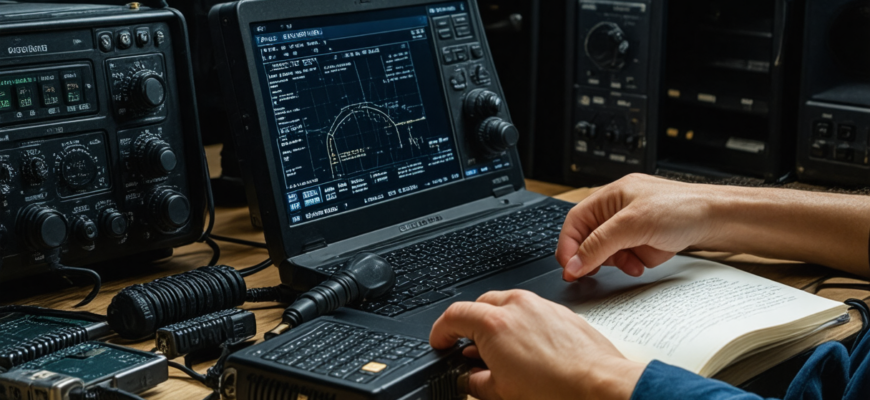
For amateur radio operators, ensuring that their equipment performs optimally is crucial. One often overlooked aspect of maintaining radio performance is managing its firmware. Firmware acts as the core software that controls hardware functions, and updating it can unlock new features, improve stability, and fix existing bugs. This guide aims to demystify the concept of radio firmware, explain its importance, and provide step-by-step instructions on how to update it safely and effectively.
- What Is Radio Firmware?
- The Importance of Firmware in Amateur Radio
- Performance Improvements
- Access to New Features
- Security and Stability
- Compatibility with Software and Digital Modes
- Understanding Your Radio’s Firmware Version
- How to Check Firmware Version
- Preparing for Firmware Updates
- Prerequisites and Precautions
- How to Find Official Firmware Updates
- Step-by-Step Guide to Firmware Updating
- Step 1: Download the Correct Firmware
- Step 2: Install Any Necessary Software
- Step 3: Connect Your Radio to the Computer
- Step 4: Launch the Firmware Update Tool
- Step 5: Back Up Your Settings (Optional but Recommended)
- Step 6: Load the Firmware File
- Step 7: Execute the Firmware Update
- Step 8: Verify the Update
- Step 9: Reload Your Settings
- Common Issues and Troubleshooting
- Failed Update or Bricked Radio
- Power Interruptions
- Incorrect Firmware Version
- Best Practices for Firmware Management
- Stay Updated Regularly
- Keep Backup Files
- Follow Manufacturer’s Instructions
- Engage with Community and Support
- Summary Table of Firmware Update Process
What Is Radio Firmware?
Firmware is a specialized software embedded within a hardware device, serving as its operating system. Unlike conventional software installed on computers, firmware resides permanently in non-volatile memory (such as ROM or flash memory) of a radio device. It is responsible for fundamental functions, including signal processing, user interface control, and communication protocols.
In the context of amateur radios, firmware governs entire operational aspects—ranging from frequency tuning, modulation types, digital communication modes, to user interface features. Manufacturers regularly release firmware updates to enhance device performance, add new features, and address security vulnerabilities.
The Importance of Firmware in Amateur Radio
Performance Improvements
Firmware updates can significantly enhance radio performance. This includes better signal handling, increased stability, noise reduction, and improved sensitivity. For instance, an update might optimize the radio’s transmit power or adjust filtering parameters for clearer communication.
Access to New Features
Many manufacturers introduce new functionalities via firmware updates. These may include expanded frequency ranges, new digital modes, customization options, or enhanced display capabilities. Staying updated ensures the radio leverages all potential features intended by the manufacturer.
Security and Stability
Firmware updates often address security vulnerabilities, preventing potential exploits that could compromise device operation or data. They also fix bugs that might cause crashes, freezes, or other malfunctions, thereby ensuring smoother operation.
Compatibility with Software and Digital Modes
With the growth of digital communication modes such as D-STAR, DMR, or System Fusion, firmware updates ensure your radio remains compatible with evolving standards and digital ecosystems.
Understanding Your Radio’s Firmware Version
How to Check Firmware Version
Before considering an update, it’s essential to know the current firmware version of your radio. Typically, this can be done through the radio’s menu system or via dedicated software tools provided by the manufacturer. The process usually involves:
- Powering on the radio.
- Accessing the menu or settings screen.
- Locating the “About” or “Info” section.
- Checking the firmware version displayed.
Additionally, some radios display the firmware version during startup or on a dedicated information screen. Consulting the user manual can provide specific instructions tailored to your model.
Preparing for Firmware Updates
Prerequisites and Precautions
- Ensure the radio is fully charged or connected to a reliable power source. Firmware updates are sensitive to power interruptions.
- Use official firmware files sourced directly from the manufacturer’s website or authorized distributors. Avoid third-party or unofficial files, as they can harm your device.
- Read the manufacturer’s instructions thoroughly. Each model may have specific procedures or requirements.
- Backup your current settings if possible. Some radios allow exporting configuration files that can be restored after updating.
- Update your computer’s drivers and software tools if required by the procedure.
How to Find Official Firmware Updates
Visit the official website of your radio’s manufacturer. Most brands maintain a dedicated support or downloads section where firmware files, manuals, and update instructions are available. Examples include:
- Official Support Page
- Firmware repository or download portal linked within the product page.
- Community forums and user groups often share updates and experiences, but always verify before applying unofficial files.
Step-by-Step Guide to Firmware Updating
Step 1: Download the Correct Firmware
Download the latest firmware version compatible with your specific radio model. Verify the checksum (if provided) to ensure the file’s integrity.
Step 2: Install Any Necessary Software
Many radios require a dedicated programming or updating software, such as Chirp, RT Systems, or manufacturer-specific tools. Install the software on your computer according to the instructions.
Step 3: Connect Your Radio to the Computer
Use the appropriate cable—USB, serial, or proprietary connection—to link the radio to your computer. Ensure stable and proper connections to prevent data corruption.
Step 4: Launch the Firmware Update Tool
Open the required software and select your connected radio model. Follow on-screen prompts to initiate the process.
Step 5: Back Up Your Settings (Optional but Recommended)
Save current configuration files through the software to prevent loss of personalized settings during the update.
Step 6: Load the Firmware File
Navigate to the firmware file you downloaded and load it into the update software. Confirm all details are correct before proceeding.
Step 7: Execute the Firmware Update
Start the update process. Do not disconnect or power off the radio during this critical operation. The process may take several minutes.
Step 8: Verify the Update
After completion, the software should confirm a successful update. Power on the radio and check the firmware version to ensure the latest version is installed.
Step 9: Reload Your Settings
If you backed up your configuration, restore the settings to regain your personalized setup.
Common Issues and Troubleshooting
Failed Update or Bricked Radio
If the upgrade fails, your radio may become unresponsive or “bricked.” To troubleshoot:
- Reconnect the device and restart the update process.
- Use recovery or rescue modes if provided by the manufacturer.
- Contact technical support for advanced recovery options.
Power Interruptions
A sudden power loss during firmware update can corrupt the internal memory. Always ensure a stable power source and do not disconnect during the operation.
Incorrect Firmware Version
Applying incompatible or wrong firmware can cause malfunctions. Double-check the model and firmware version before updating.
Best Practices for Firmware Management
Stay Updated Regularly
Check for firmware updates periodically, especially when new digital modes or features are announced.
Keep Backup Files
Maintain copies of your configuration files and firmware versions for quick recovery if needed.
Follow Manufacturer’s Instructions
Always adhere to official procedures to minimize risks and ensure successful updates.
Engage with Community and Support
Participate in amateur radio forums and user groups to stay informed about firmware-related news, tips, and troubleshooting advice.
Summary Table of Firmware Update Process
| Step | Description |
|---|---|
| 1. Check current firmware | Identify the current version via menu or software. |
| 2. Download official firmware | Get the latest update from the manufacturer’s website. |
| 3. Prepare the system | Install necessary software, ensure power stability, back up settings. |
| 4. Connect radio to PC | Use proper cable and ensure stable connection. |
| 5. Load firmware into update tool | Follow prompts and double-check compatibility. |
| 6. Execute update | Start process, do not disconnect power or device. |
| 7. Verify success | Check firmware version after update completes. |
| 8. Restore settings | Reconfigure radio if necessary. |
Mastering the process of updating your amateur radio’s firmware is essential for maintaining optimal performance, expanding capabilities, and ensuring security. While the procedure may seem technical at first, following manufacturer instructions and best practices can make the process straightforward and safe. Regularly checking for updates and engaging with the amateur radio community can keep your equipment current and ready for the latest communication modes and innovations.
By understanding the importance of firmware, knowing how to check your current version, and carefully performing updates, amateur radio enthusiasts can maximize their radios’ potential and enjoy reliable, high-quality communications for years to come.
Похожие записи:
 Mastering Multiple Frequency Programming: The Ultimate Guide for Amateur Radio Enthusiasts
  Understanding Ham Radio Frequencies and Bands: A Comprehensive Guide for Amateur Radio Enthusiasts
  Mastering Regulatory Changes: A Comprehensive Guide for Amateur Radio Enthusiasts
  Comprehensive Review of Radio Programming Software for Beginners
  Integrating Software-Defined Radio into Your Daily Operations: A Comprehensive Guide for Amateur Radio Enthusiasts
  How to Build a Simple Dipole Antenna at Home: A Comprehensive Guide for Amateur Radio Enthusiasts
  Harnessing Your Smartphone as a Radio Control and Logging Device: A Comprehensive Guide for Amateur Radio Enthusiasts
  Building a Simple, Low-Cost Antenna Tuner at Home: A Comprehensive Guide for Amateur Radio Enthusiasts
  Mastering Your Amateur Radio Antenna: Comprehensive Guide to Tuning and Testing
  Basic Antenna Types and Their Uses for Beginners: A Comprehensive Guide for Amateur Radio Enthusiasts
  Comprehensive Review of the Latest Mobile Radio Apps and Software for Amateur Enthusiasts
  How to Build Your Own Homemade QRP Transceiver: A Comprehensive Guide for Amateur Radio Enthusiasts
  Ultimate Guide: Best Practices for Maintaining and Extending the Lifespan of Your Radio Equipment
  Ultimate Guide: Tips to Extend Your Radio’s Battery Life for Amateur Radio Enthusiasts
  Ultimate Guide to Staying Organized with Your Radio Accessories: Tips for Amateur Radio Enthusiasts
  Getting Started with Digital Modes like FT8 and PSK31: A Complete Guide for Amateur Radio Enthusiasts